A route for your type of loss
Separate never-saved work, discarded edits, accidental overwrites, apparent loss and deletion boundaries.
Preserve the copies. Find the missing work. Verify the workbook.
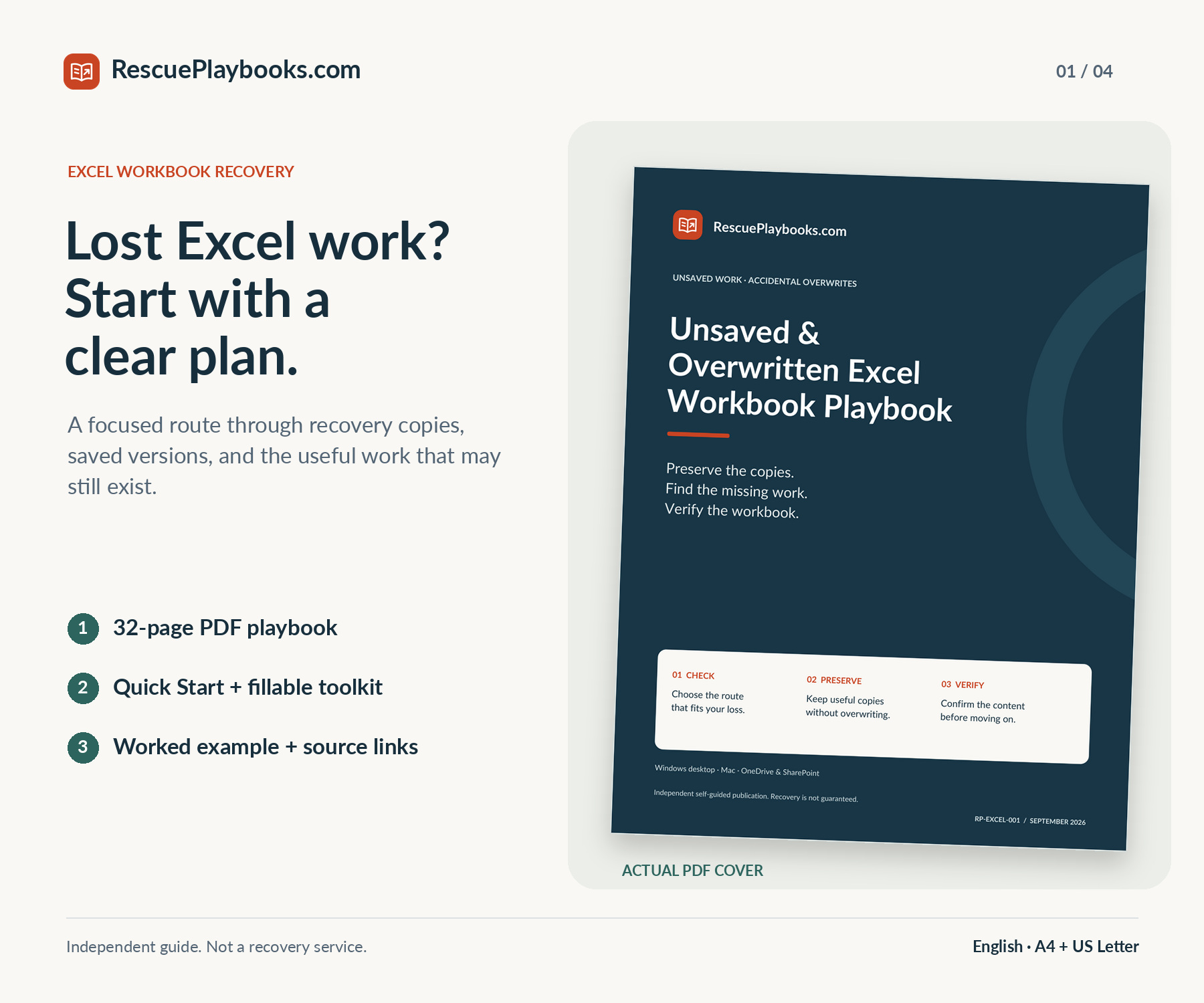
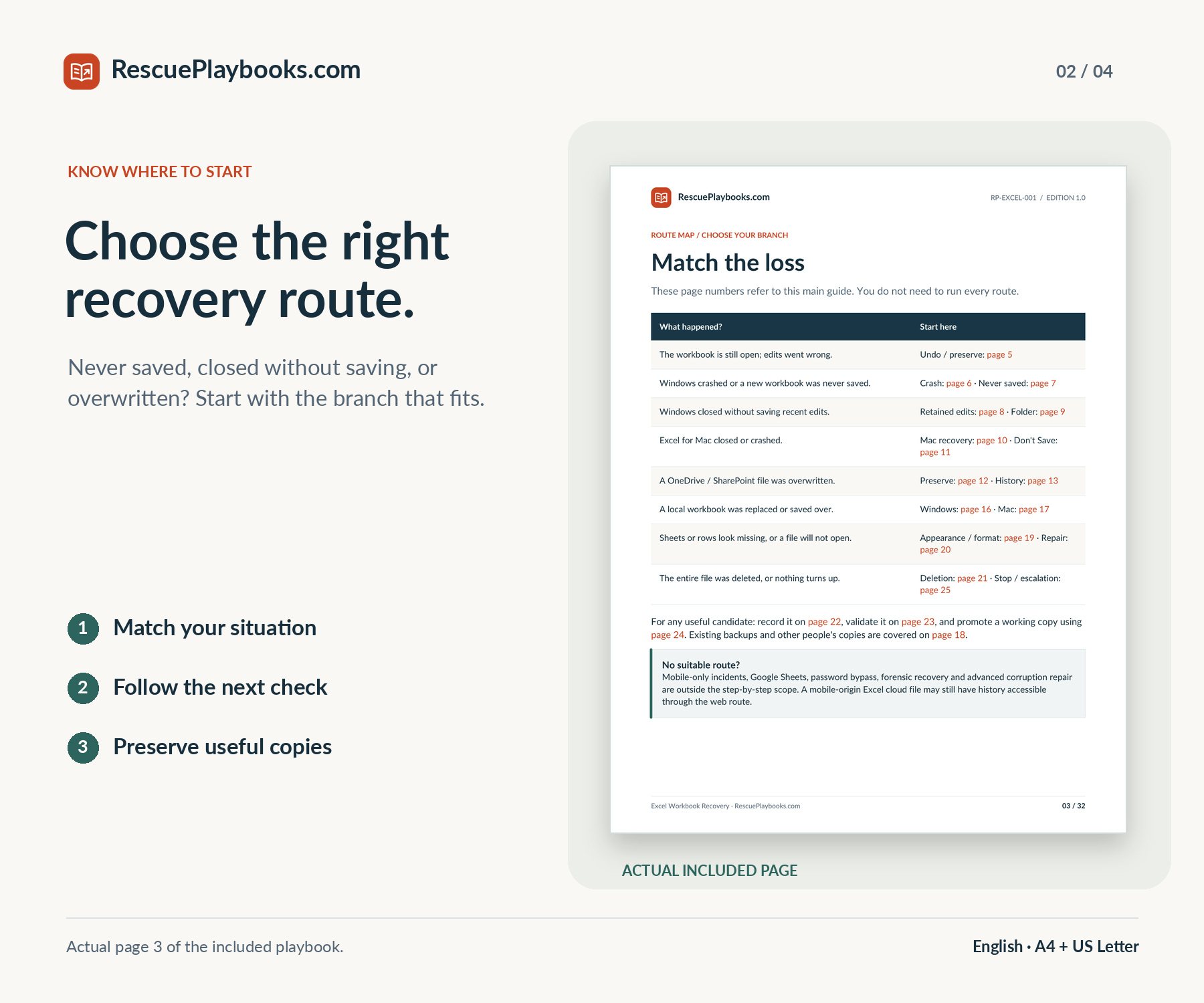
A closed workbook and a saved-over file need different checks. Follow the route for your Excel setup, compare retained copies and earlier versions, then verify the formulas, sheets and later edits that matter. Keep a clear record of what was recovered and what still needs attention.
Not a data recovery service. We do not access your files or carry out recovery steps for you.
Recovery is not guaranteed. Available copies, prior settings, storage, permissions and existing backups determine what can be recovered.
Independent guide. Not affiliated with or endorsed by Microsoft or Apple. You are buying an independently organized guide, practical PDF tools and adaptable messages—not recovery software, paid platform support, or work carried out on your computer. Official source links are included.
Focused guidance. Practical resources. Clear next steps.
Separate never-saved work, discarded edits, accidental overwrites, apparent loss and deletion boundaries.
Keep useful current and historical copies, with clear stopping points before restore, repair or sync changes.
Use platform-specific recovery checks, the configured Windows folder and the documented Excel for Mac location.
Inspect OneDrive and SharePoint history, File History, Time Machine and other saved copies when available.
Check formulas, sheets, workbook format and later edits instead of treating a successful open as full recovery.
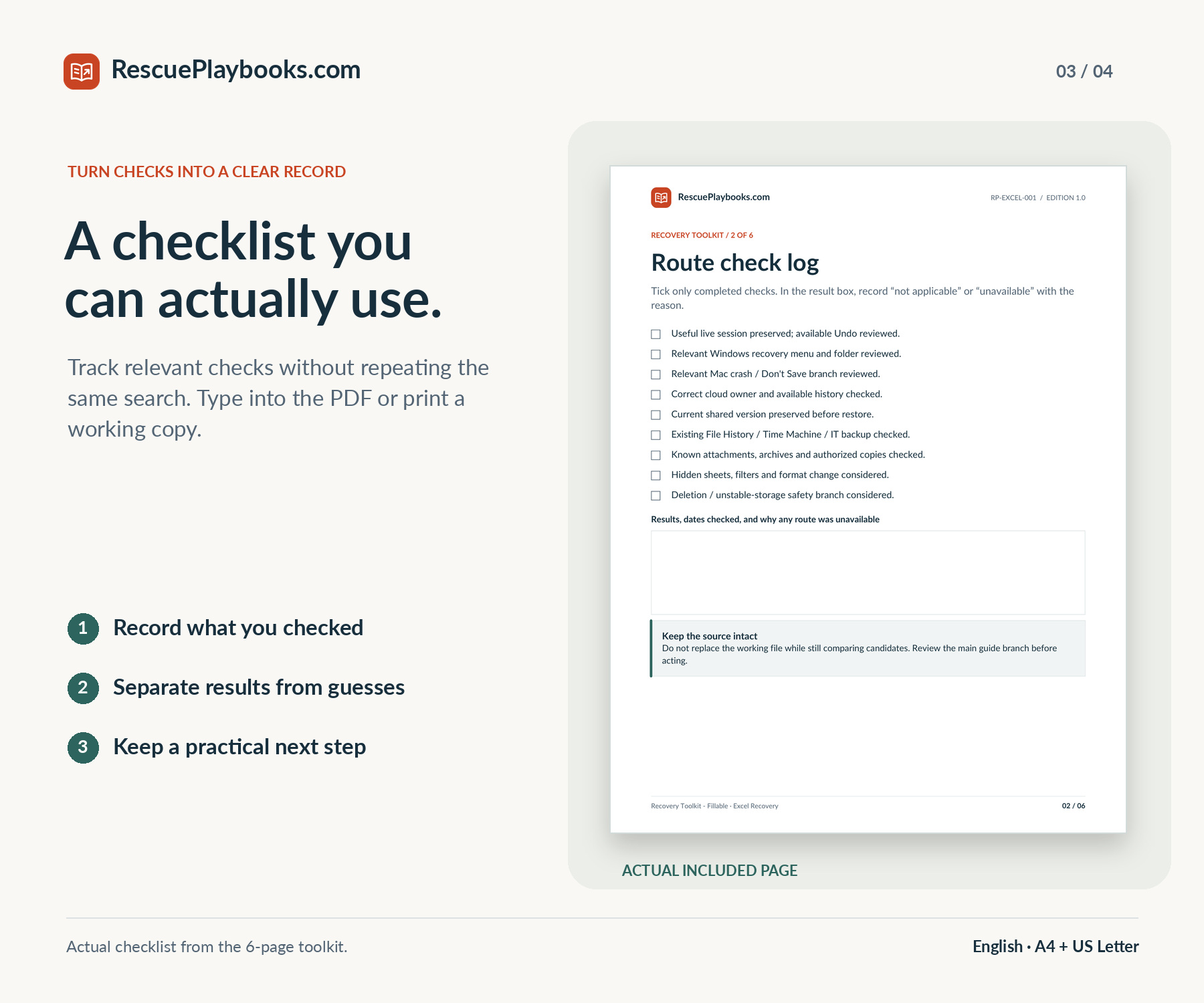
Use the short route map plus six printable worksheet pages with editable fields and checkboxes.
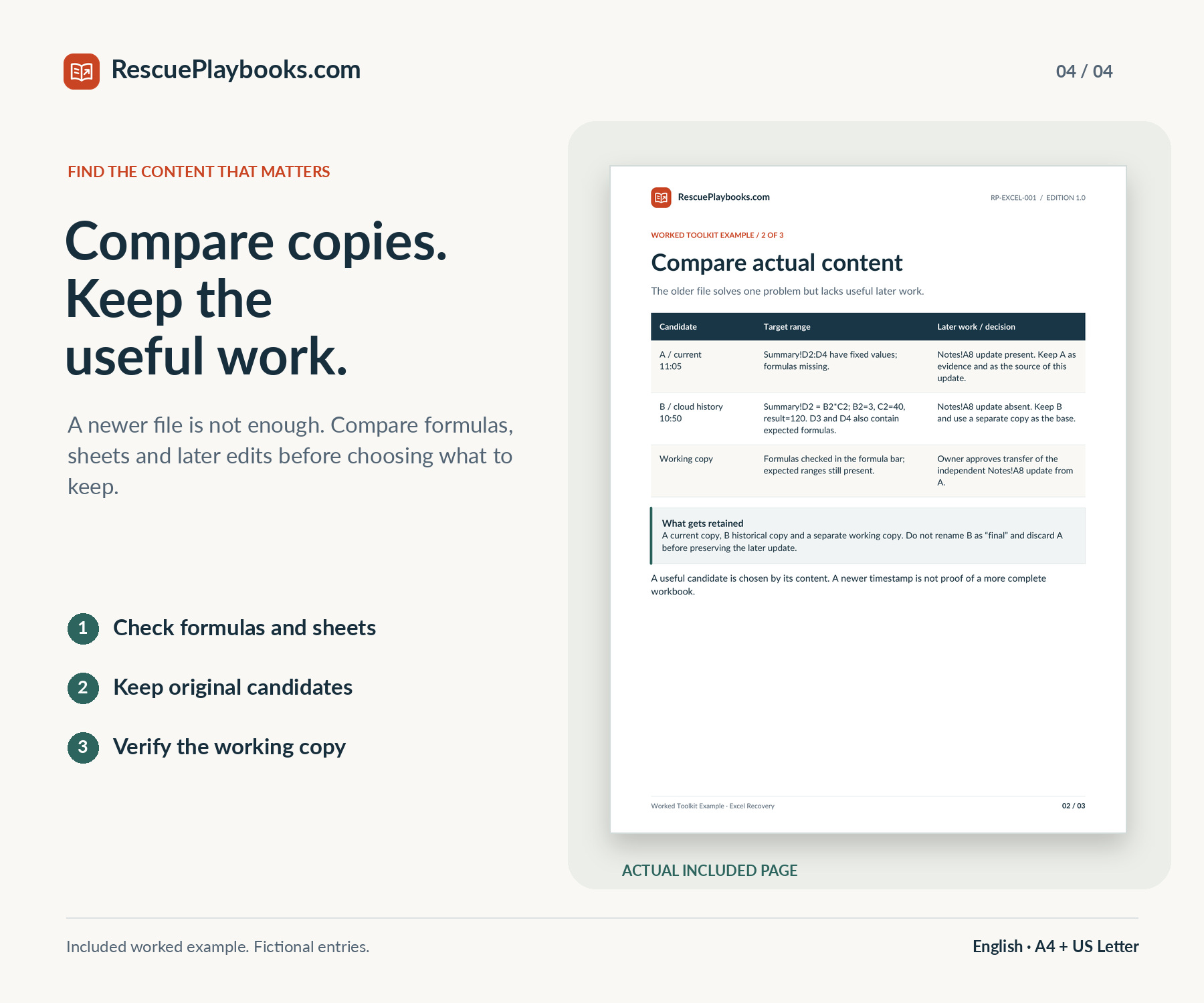
Compare fictional candidate copies and prepare a focused owner, IT or collaborator request.
Follow linked Microsoft and Apple documentation, with prerequisites, no-result branches and practical boundaries.
Choose your paper size. Keep the practical tools beside you.
Preservation routes, Excel-specific checks, a worked scenario and official source links.
Read on screen or print the size that matches your paper.
Quick Start, fillable toolkit, a worked example and adaptable messages.
A4 and US Letter editions contain the same content. No audio file is included.
Hands-on recovery, remote access, one-to-one technical support, or a guaranteed result. Excel software, licenses, password or encryption bypass, physical-drive repair, or advanced forensic and corrupted-workbook recovery. Recreating work that was never saved or retained; full mobile-only, Google Sheets, or other spreadsheet-app recovery procedures.
Independent guide. Not affiliated with or endorsed by Microsoft or Apple. Excel software and Microsoft licenses are not included.
Choose the relevant Windows or Mac recovery route and preserve any retained copy before making more changes.
Check earlier cloud versions or existing backups without discarding useful content in the current file.
Separate retained unsaved edits from a normal saved version, with a distinct Mac Don't Save branch.
Confirm the actual cloud file and account, coordinate with collaborators, and review available history before restoring.
Use an Excel-specific checklist for sheets, formulas, features and later valid changes.
Compare candidates, record missing content, and prepare a focused request to the file owner or IT team.